


BuildOps x QuickBooks
QuickBooks tracks the money. BuildOps tracks the work. Invoices and payments flow from the field to your books. No re-keying, no missing revenue.
Effortless financial management
BuildOps integrates directly with QuickBooks online or desktop to simplify financial management. Your accounting data stays accurate, organized, and accessible without the need for manual data entry.
- Your BuildOps customer, property, project, and job structure maps directly to QuickBooks' customer and sub-customer hierarchy, so every job lands in the right place on your P&L without manual re-organization.
- Field data, job costs, and invoices flow between BuildOps and QuickBooks automatically so there is no re-keying, no copy-paste.
- Your Chart of Accounts, Classes, Items, Sales Tax Rates, Payment Methods, Customers, and Vendors stay in sync across both systems.
- Customers and job records sync automatically so the books match the field. On QuickBooks Desktop, vendors sync both ways. On QuickBooks Online, vendors push from BuildOps to QBO.
- Tax rates, labor burdens, and material markups calculate correctly from day one.
- BuildOps is your system of action for the field. QuickBooks stays your system of record.
- One source of truth with two platforms working together.
Automate your workflow
Automatically sync field data with the office for invoicing. Review and approve tasks, notes, photos, and parts ordered, all from within BuildOps. Send invoices directly to customers via email with just a few clicks.
- When a tech closes out a job, the data moves straight to the office, including time entries, materials, notes, and photos.
- No more chasing paper tickets or decoding handwritten notes at the end of the week.
- Approve and review everything from one screen before anything hits QuickBooks.
- Send invoices to customers via email with just a few clicks so there is no switching between systems.
- Parts ordered in the field land on the right job cost report without anyone re-entering them.
- Purchase orders and receipts created in BuildOps push directly to QuickBooks. Vendor bills and payments flow back, giving your AP team full visibility into what was ordered, received, and billed without toggling between systems."Purchase orders and receipts created in BuildOps push directly to QuickBooks. Vendor bills and payments flow back, giving your AP team full visibility into what was ordered, received, and billed without toggling between systems.
- Approved timesheets export from BuildOps and can be import directly into QuickBooks keeping your labor records aligned for payroll and job costing.
- Less busywork for your office. Faster billing for your business.
Quick and accurate invoicing
Create invoices quickly within BuildOps, and using the QuickBooks desktop integration, data entry happens only once, eliminating errors and keeping your records consistent.
- Build invoices directly from completed work orders. The labor, materials, and notes pull in automatically.
- Data entry happens once. What your tech logs in the field is what shows up on the invoice.
- No more double-entry between BuildOps and QuickBooks. One entry, both systems updated.
- Invoices match the work that was actually done — fewer disputes, fewer callbacks from customers.
- Cut your billing cycle from weeks to days. Get paid faster without adding office headcount.
- Contractors using BuildOps have dramatically shortened their billing cycles.
Payment tracking and AR visibility
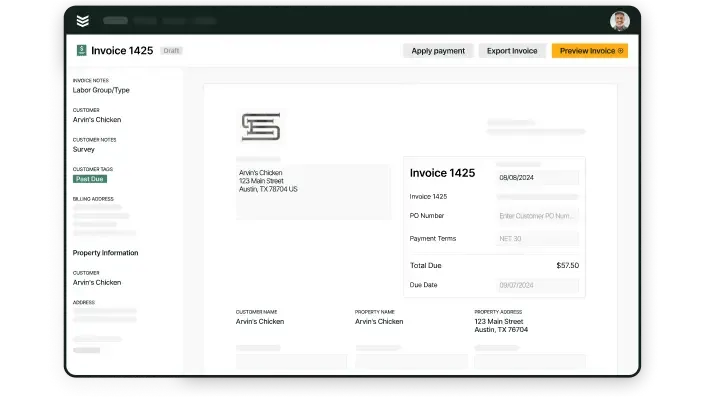
Monitor invoice statuses as they sync between BuildOps and QuickBooks. Keep track of payments, overdue invoices, and customer payment histories to keep your accounting tight and your cash flow visible.
- See which invoices are paid, pending, or past due, all from one dashboard.
- Payment data syncs between BuildOps and QuickBooks so your AR is always current.
- Track customer payment histories to spot patterns before they become problems.
- Know exactly where your money is at any given moment — no end-of-month surprises.
- Flag overdue invoices early and follow up before they age out.
- Your office stops guessing and starts acting on real numbers.
- Collections become proactive, not reactive.
- Cash flow visibility that used to take a full audit now takes a glance.
The onboarding process
Getting your BuildOps QuickBooks integration live is a structured, hands-on process. Our implementation team handles the heavy lifting so your office and field crews never skip a beat.
Every integration follows the same proven path: map it, test it, turn it on. Your data stays clean, your team stays working, and your books stay accurate from the first sync.
Step 1: Financial mapping and audit
We map your existing Chart of Accounts, Classes, Items, Sales Tax Rates, Payment Methods, Customers, and Vendors in QuickBooks to BuildOps, making sure every field activity has a pre-defined landing spot in your ledger.
Step 2: Sandbox validation
Before going live, we run a series of test work orders through a sandbox environment to verify that tax rates, labor burdens, and material markups are calculating exactly as expected. You see the output before it hits your books.
Step 3: The bidirectional handshake
Once validated, we trigger the live sync. BuildOps becomes your system of action for the field, while QuickBooks remains your system of record with data flowing between the two. Field to office to ledger—no gaps.
Peer perspective
Contractors who have connected BuildOps and QuickBooks talk about one thing: time back.
Less time chasing paperwork. Less time matching tickets to entries. Less time wondering where the money is. More time running the business.
Field service software QuickBooks integration questions, answered
What is a bidirectional sync, and why is it important with a QuickBooks integration in a field service software?
A bidirectional sync means data flows freely two ways when you have two tools talking to each other. With BuildOps and QuickBooks for example, when the integration is set up, it means that when information is updated or changes in one tool, that change is automatically reflected in the other tool.
This is critical for a field service software that integrates with QuickBooks desktop, because without a bidirectional sync, teams have to continue manually updating the other tool after a change is made in the first tool. That’s not really different than using the two tools separately.
Checking for a bidirectional sync is one of the most important things to focus on when looking for a QuickBooks integration in a field service software. Otherwise, the integration is unlikely to be particularly useful to you.
How do I make sure a QuickBooks integration with my field service software will be successful?
Make sure your field service software vendor is there to support you during integration by setting up and testing your data in a safe environment before you launch. Before pushing the integration live, you should run a series of test work orders with at least 10 example customers in a sandbox environment. Use that test to verify that taxes, labor, and materials are all calculating how you need them to, and you get the output you need from the integration.
Ask to see how the QuickBooks integration works in a demo to make sure it really works for your business use case, and that the field service software vendor understands how it would integrate within your exact system. Ask for proof of concept.
What questions should I ask in a demo to make sure the QuickBooks integration will work for my business?
Here are the things you should double check with the vendor before signing on:
- How and where are work orders, materials, invoices, taxes, and other financial data synced?
- How do I prevent data duplicates using this integration?
- Can you show me what happens when an invoice is edited on both ends (in the field and in finance)?
- How do field techs access the QuickBooks integration on their mobile app? Does it work that way or will it only work on desktop?
- What can QuickBooks connect to in this platform? Is it just invoicing, or can it connect to other things like quotes and estimates or my sales CRM?
- How can I export reports with QuickBooks data?
Learn more
See other integrations