Walk any commercial job and you’ll see the same thing: the real work is happening on paper, in text threads, or in someone’s head.
Punch items scribbled on a legal pad. Quality issues texted to a group chat. Walk‑through notes scattered across emails and whiteboards.
None of that is searchable or structured, nor can it help when you’re trying to close a job without last‑minute chaos.
It’s time that work lives where the rest of the work lives: inside BuildOps.

Meet Lists: Punch Lists, Inspections, and Tasks Inside the Project
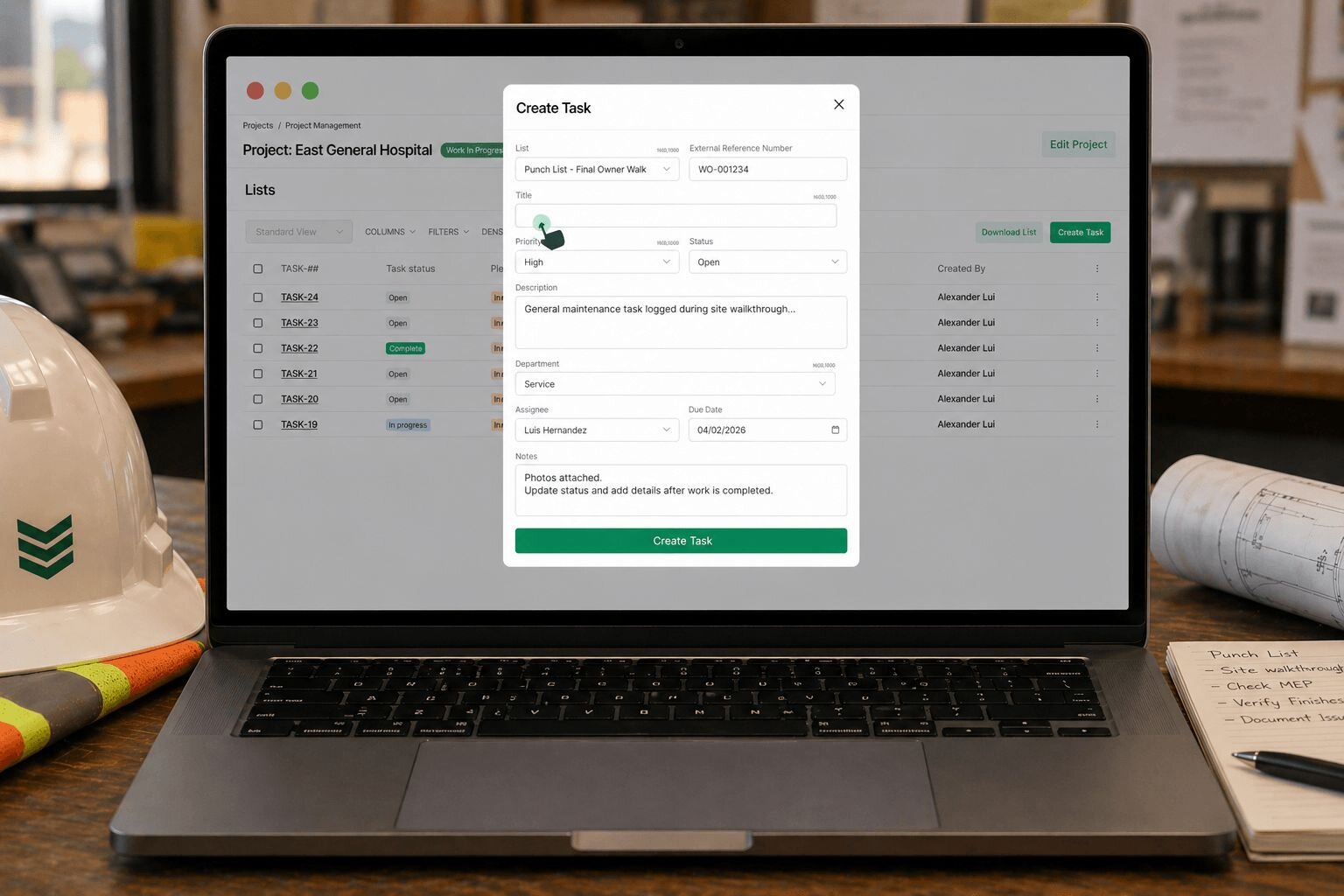
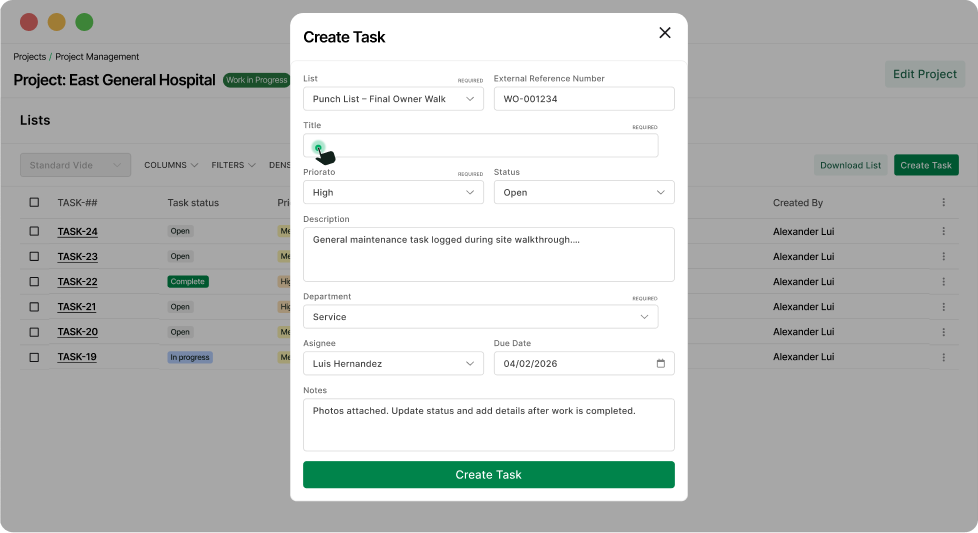
With our new Lists & Tasks module on web and mobile, punch lists, inspections, and quality checks no longer live in standalone spreadsheets or sticky notes. They live where they belong: in the project, as structured data your team (and OpsAI) can actually use.
Inside any project, you can now:
- Build and manage punch lists, QA/QC checklists, and task lists natively in BuildOps
- Work in Grid View or Kanban View, depending on how you like to run the board
- Import from or export to Excel when you need it (without living there)
- Drive a structured completion workflow with assignees, due dates, statuses, and resolution notes
Every task is a real record, not just a line on a spreadsheet. That means you can filter, sort, and report on work instead of chasing it.
No more asking, “Did we ever log that?” If it’s work, it’s in the list.
Put Tasks Exactly Where the Work Lives: On the Drawing
Punch walks fall apart when the jobsite and the plans get out of sync.
Someone circles an issue on a printed set.
Someone else writes “east corridor, third door on left” in an email.
Then a tech shows up three days later and has to guess what “that ceiling panel by the stair” was supposed to mean.
Now, you can pin tasks directly to locations on your project drawings:
- Tap to create a task from a drawing annotation
- Drop a pin on the exact spot where the issue lives
- See every task in context when you’re doing walkthroughs or QA checks
We also redesigned the Reference Sidebar so RFIs and Tasks sit side by side. When you click into a location, you see:
- Open RFIs tied to that part of the plan
- Tasks logged against that same area
- The history of what changed and why
Instead of hunting through email to remember why a change was made, your team can literally see issues where they started.
Why This Matters for OpsAI
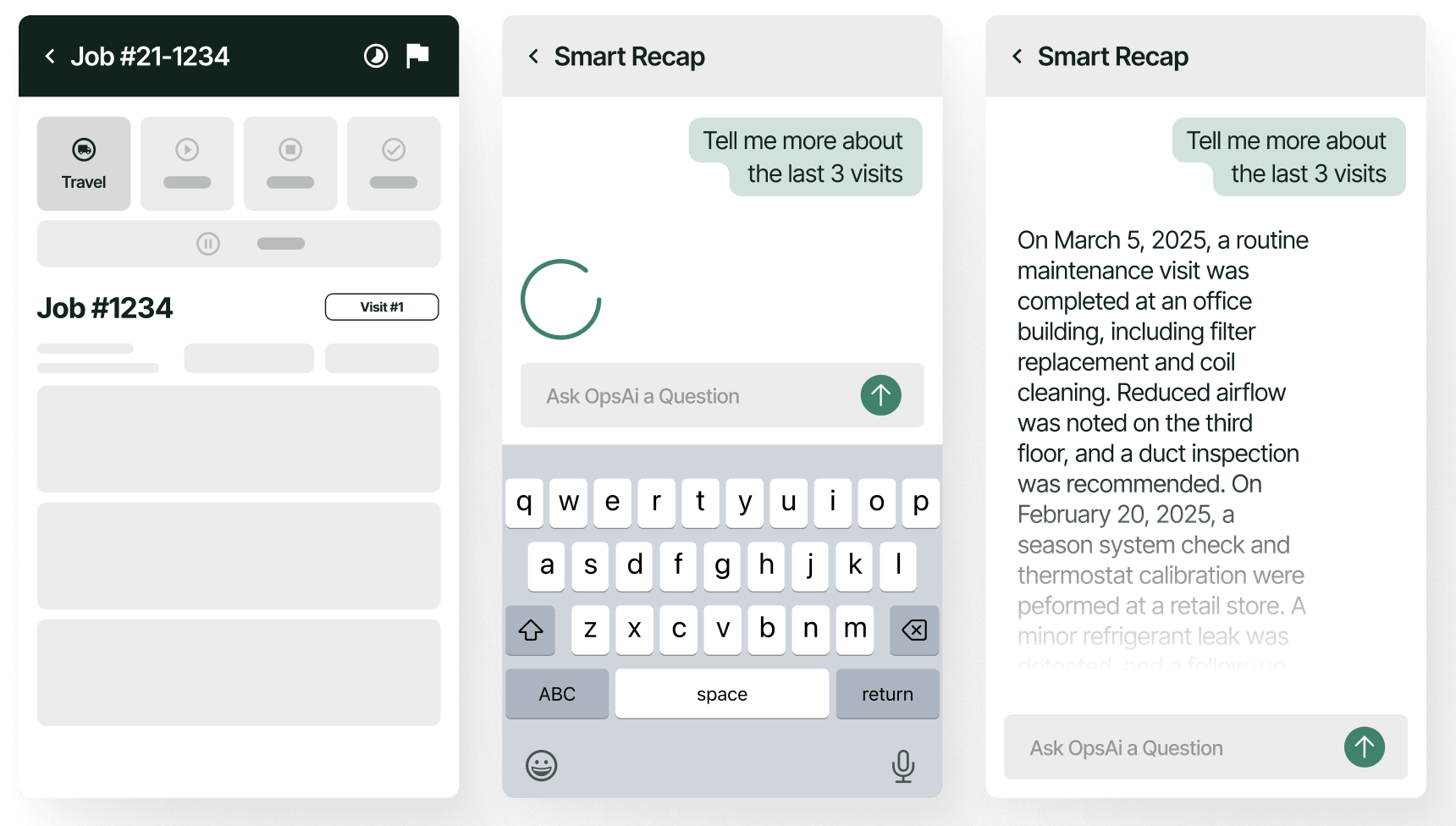
OpsAI is only as strong as the data it has access to.
When punch items, inspections, and follow‑up tasks live in spreadsheets, text threads, or notebooks, they’re hard to search, hard to trust, and impossible to use consistently across projects.
By moving those lists into BuildOps as structured tasks — with statuses, assignees, locations, and resolution notes — you’re creating cleaner, more consistent records that OpsAI can tap into over time.
It’s the same work your team already does, just captured in a way the system can actually work with later.
How Life Changes for the Team
This launch is built for the full project team — but it all starts with Lists.
For Project Managers
Before: Punch lists lived in Excel or on paper. There was no centralized, project‑tied view of open items, no clean way to track closeout readiness, and no reliable record of how issues were actually resolved.
After: A native Lists & Tasks module inside each project with Grid and Kanban views, import/export when you need it, and structured workflows with resolution notes. You get a single source of truth for closeout tied directly to the job.
For Foremen and Supers
Before: Walk‑through notes and “to‑do” items were scattered across notebooks, texts, and ad‑hoc spreadsheets. Things slipped between the cracks, especially across multiple phases and areas.
After: You can log issues as tasks in a shared project list, assign owners, set due dates, and see progress in real time. Nothing stays “in someone’s head” — and you don’t have to rebuild the punch list from scratch at the end.
For Project Engineers
Before: Tasks and drawings sat in separate places. You knew what needed to be done, but not always where, and it was easy for items to get missed on walks.
After: You can pin tasks to exact drawing locations via annotations, see RFIs and tasks in the same reference sidebar, and walk the job with full spatial context. Fewer items get missed, and it’s easier to explain what changed and why.
Service and Projects: Together in BuildOps
If you’re ready to get punch lists, inspections, and job‑critical tasks out of spreadsheets and into a system that can actually work with them — and learn from them over time — Lists is your new starting point.
Because the jobsite already runs on lists. Now they can finally run inside BuildOps, too.