BuildOps and QuickBooks Integration for Contractors



Trying to connect QuickBooks to another field service management software can turn into a mess fast. The office ends up re-entering job details, invoices take longer to send, and your team starts wondering which system has the right numbers. When the handoff between the field and accounting breaks down, it slows everything down.
The integration gives commercial contractors a cleaner link between the work getting done in BuildOps and the financial records living in QuickBooks. Instead of chasing paperwork across disconnected tools, your team can keep jobs, invoices, payments, and purchasing workflows moving in one connected flow.
This guide covers what the integration does, what flows between BuildOps and QuickBooks, how QuickBooks Online differs from QuickBooks Desktop, and the limits your team should know before rollout.
Why QuickBooks integration matters for commercial contractors
Field teams do not have time for admin work. When dispatch, job notes, labor, parts, and invoicing live in different systems, the office spends its day chasing missing details. QuickBooks can only do its job if clean job data flows in from the field.
That is where QuickBooks integration with BuildOps comes in. It keeps service work, billing, and purchasing tied together so your handoff into QuickBooks is smoother and faster.
BuildOps can pull the accounting data needed to support setup, including GL accounts, classes, sales tax, and payment types. Your team starts with better data and less re-entry.
It also has a direct impact on cash flow. BuildOps research shows that shops that send invoices within the first 10 days after a job are more likely to get paid faster. When service activity and accounting stay aligned, contractors can bill sooner, catch missing costs earlier, and keep cash flow tied to real field progress. For a closer look at why this matters, see how getting invoices out quicker can get you paid up to 5x faster.
BuildOps supports both QuickBooks Online and Desktop, but each uses a different setup: Online requires the customer’s QuickBooks admin to grant BuildOps access, while Desktop connects through the QuickBooks Web Connector and depends on the customer’s company file environment to keep the sync running.
{{related-content-block="/resources/invoicing-sweet-spot"}}
What syncs between BuildOps and QuickBooks
The integration is built to keep the field and the back office working from the same record. That means BuildOps can support the accounting handoff across invoices, payments, purchasing workflows, and the master data your team needs to keep records clean.
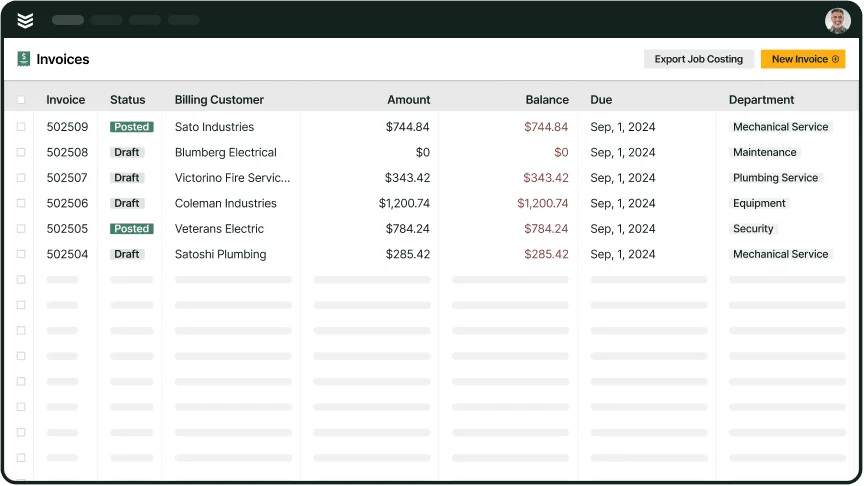
On the invoicing side, BuildOps can create invoices at the job level or under the customer property, depending on how the integration is configured. It can also send the invoice summary into QuickBooks as memo or note content when that setting is turned on.
That matters because invoice summaries are part of the customer-facing story. In BuildOps, teams can leave the summary blank, pull in visit summaries, or use AI-written summaries for Time & Material invoices. Those choices shape what your billing team sees in BuildOps and what can flow into the accounting record later. If you want a more detailed look at the job-to-invoice handoff, our guide on QuickBooks work order management shows how that flow plays out in the field.
Payments are part of that flow too. In QuickBooks Online, payments can flow back when they are standalone or tied to an invoice. If a customer uses more than one AR account, BuildOps can be configured to use the right one for payment sync.

Purchasing is configurable as well. PO receipts can be mapped to create either a PO or a bill in QuickBooks, and line-level receipt details can sync down with the product, description, quantity, rate, amount, customer, and class.
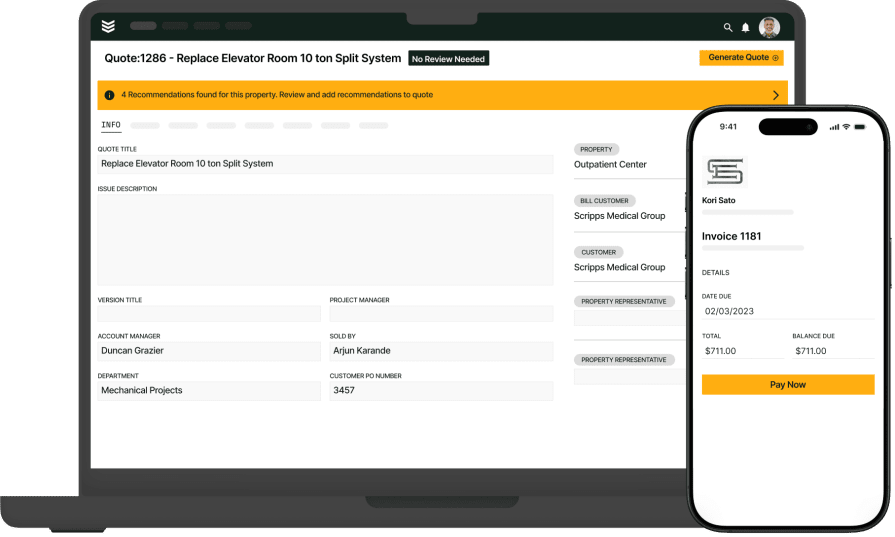
This is where BuildOps helps most. Instead of asking the office to piece together what happened after the fact, the platform keeps the work, the notes, and the financial handoff closer together through tools like invoicing, Payments+, purchasing & inventory, and the technician mobile app.
How setup works for QuickBooks Online and QuickBooks Desktop
BuildOps connects to both QuickBooks Online and QuickBooks Desktop, but the setup path is different for each one. The easiest way to think about it is this: QuickBooks Online starts with account access, while QuickBooks Desktop starts with the Web Connector and the right company-file setup.
QuickBooks Online
If you use QuickBooks Online, setup usually follows four steps:
- Have your QuickBooks admin grant BuildOps access to the QuickBooks account.
- Confirm whether you are connecting an existing QuickBooks book or starting with a new one.
- Review your accounting structure before import, including customer-property relationships, duplicate records, and tax-rate setup.
- Validate the connection in the training environment before moving into your live workflow.
This path works best for contractors who want an online connection that is easier to review before go-live.
QuickBooks Desktop
If you use QuickBooks Desktop, setup usually follows four steps:
- Confirm the right company file and machine will be used for the connection.
- Set up the QuickBooks Web Connector so BuildOps can connect to the file.
- Use a backup or copy of the file for training, then connect the live company file when you are ready to go live.
- Keep QuickBooks open and make sure the connector stays tied to the same environment your team set up.
Once that connection is in place, BuildOps can pull the accounting data needed to support setup, including GL accounts, classes, sales tax, and payment types. If your team is also looking at the workflow around day-to-day coordination, these guides to service dispatch software that works with QuickBooks and scheduling software compatible with QuickBooks show how dispatch and scheduling fit into the bigger picture.
Who benefits most, and what to watch for
This integration is a strong fit for commercial contractors who want the field and the office working from the same numbers. It helps billing teams move faster, gives service admins a cleaner handoff between job activity and accounting, and gives owners better visibility into what the work is producing.
If you are comparing platforms with QuickBooks integration, the real question is not just whether the connection exists. It is whether the day-to-day workflows match the way your team actually runs jobs, bills customers, buys material, and manages the books.
Here are the main things contractors should confirm before rollout:
- For QuickBooks Online, inventory stays outside this integration, so teams should plan around that in their accounting workflow.
- If your team needs tax reflected on QBO purchase orders, add it as a separate line item so it carries over the way you expect.
- If an invoice is voided in BuildOps for a QBO account, that same invoice is removed in QuickBooks as part of the sync.
- If your team relies on project numbers in QuickBooks, the practical approach is to include that number in the project name in BuildOps.
- Contractors with multiple subsidiaries usually get the cleanest setup when each subsidiary has its own QBO file and its own BuildOps tenant.
- For QuickBooks Desktop, the connection depends on the company file and connector being set up in the right environment, so it is worth confirming that workflow before go-live.
What matters is whether the QuickBooks connection fits how your shop runs jobs, buys material, bills customers, and closes the books.
{{related-content-block="/resources/field-service-management-software-compatible-with-quickbooks"}}
When your field system and QuickBooks do not stay aligned, the office ends up doing the same work twice and the books fall behind the job. BuildOps fixes that by connecting field activity, invoicing, payments, and purchasing to the accounting workflow in one place. And with OpsAI, teams can also speed up parts of the documentation flow inside BuildOps, helping the handoff from field to office stay cleaner and easier to act on.